VioraEarly Access
  • 使用场景
  • 价格
  • 免费下载
  • 博客

Selected-Text Editing for Mac

Select text in a Mac app, speak an edit request, and use Viora to rewrite, shorten, restructure, or adjust tone.

By the Viora team - Last updated July 1, 2026.

Selected-Text Editing helps when you already have text and want to improve it by voice. Select a draft, hold the shortcut, say what should change, and review the rewritten result.

Viora edit workflow

What it solves

Most writing work is editing work. You may already have a paragraph, reply, note, PRD section, or support draft, but it is too long, too rough, too formal, or not structured enough.

Without Selected-Text Editing, the workflow often looks like this:

  1. Copy the text.
  2. Paste it into a separate AI chat.
  3. Explain how it should change.
  4. Copy the result.
  5. Return to the original app.
  6. Replace the old text.

Viora shortens that loop by keeping the edit request in the current Mac workflow.

How it works

  1. Select the text. Highlight a paragraph, a sentence, or a full section in any Mac app.
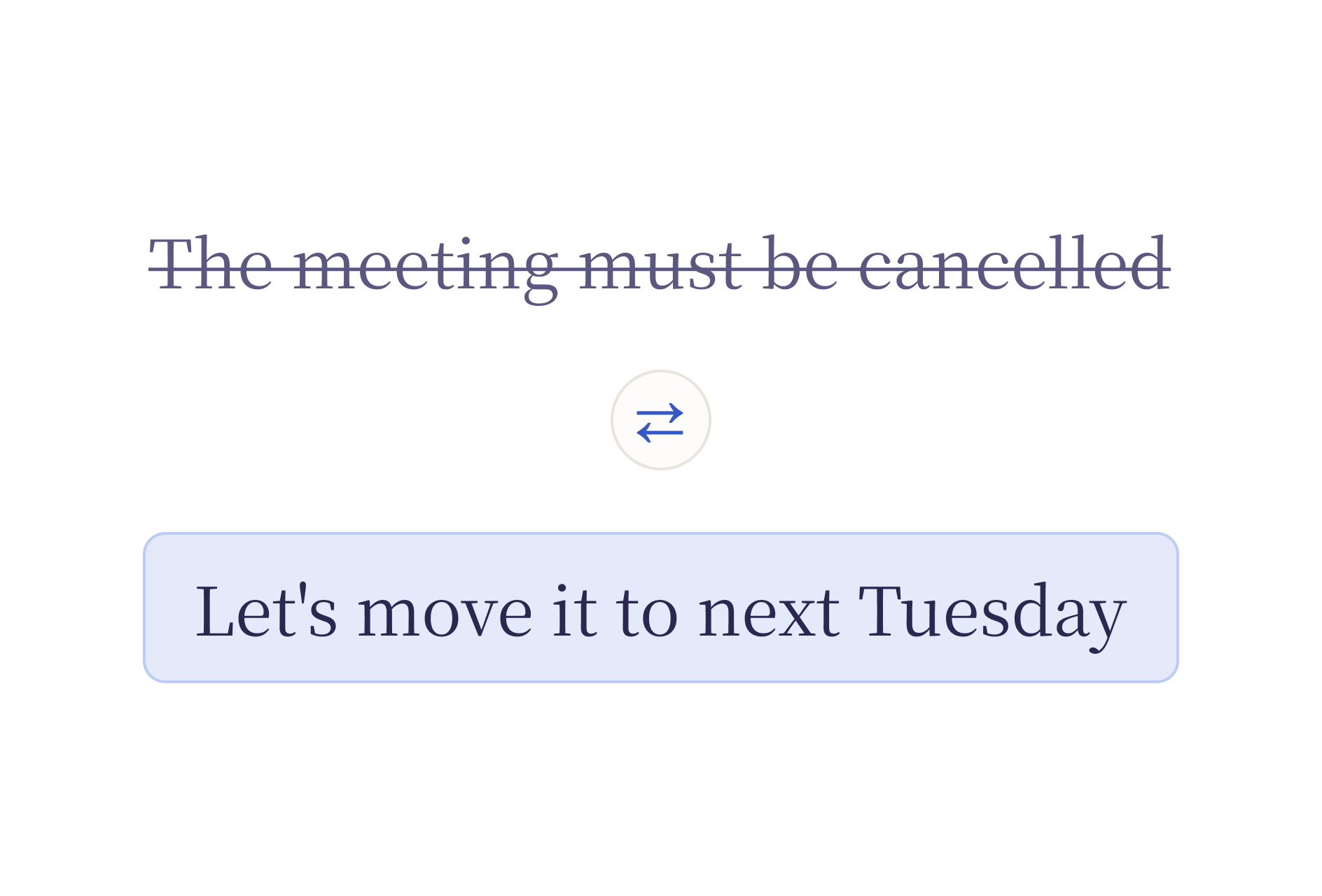
  2. Hold the shortcut and speak. Say what should change: "make this shorter", "translate to Spanish", "turn this into bullets". By default the shortcut is Fn; you can customize it.
  3. Release and review. Viora replaces the selected text with the edited version. If the result is not right, undo with Cmd+Z and try a different instruction.

The whole flow stays inside the app you are already using. No copy-paste, no switching windows.

Viora capsule showing a drafted email reply

Common voice edit requests

GoalExample request
Shorten"Make this shorter."
Change tone"Make this calmer and more direct."
Clarify"Make this easier to understand."
Structure"Turn this into three bullets."
Preserve meaning"Keep the meaning but remove repetition."
Draft a reply"Make this a short customer reply."
Translate"Translate this to Japanese."

These are workflow examples, not guaranteed outcomes for every app. App permissions, focused text areas, and product version can affect behavior.

Where it works

Selected-Text Editing works in the same text fields as Viora dictation. If you can select text in it, you can edit it by voice:

  • Email: Mail, Gmail in the browser, Outlook, Superhuman
  • Chat: Slack, Messages, Discord, Telegram
  • Docs: Notion, Google Docs, Obsidian, Bear, Apple Notes
  • Code: Cursor, VS Code, Xcode (code comments, commit messages, docstrings)
  • Browser: any text area on any website
  • Forms: support tickets, CRMs, internal tools

How it differs from dictation

AreaDictationSelected-Text Editing
Starting pointCursor or blank text fieldExisting selected text
Main jobCreate textImprove text
Common outputNewly inserted wordsShorter, clearer, rewritten, or restructured text
Best forNotes, messages, first draftsEmails, handoffs, PRDs, support replies, code review notes

Dictation and Selected-Text Editing share the same shortcut. Viora decides which workflow to use based on whether you have text selected.

Privacy and limits

Viora is cloud-assisted. It should not be described as fully offline or local-only. Viora's privacy materials say desktop task content may be processed through Viora backend systems when large-model processing is needed.

Selected-Text Editing should not be used as unchecked automation. Review edits before sending or publishing them.

FAQ

What is Selected-Text Editing?

Selected-Text Editing is Viora's workflow for selecting existing text, speaking an edit request, and reviewing the rewritten result in the current Mac workflow.

How is it different from dictation?

Dictation creates new text from speech. Selected-Text Editing changes text that already exists.

Is Selected-Text Editing fully offline?

No. Viora is cloud-assisted, not fully offline or local-only.

Does Viora overwrite my original text automatically?

Viora replaces the selected text with the edited version. You can undo the change with Cmd+Z in most Mac apps if the result is not what you wanted.

Try selected-text editing

Selected-text editing is easiest to evaluate with everyday drafts: email replies, notes, PRD sections, support responses, or handoff text. Install Viora on Mac, test it on non-sensitive text first, and review current plan details before adding it to a regular workflow.

  • Download Viora for Mac
  • Check Viora pricing
  • Review Viora Privacy Policy

Related reading

  • Voice Agent for Mac — the full voice workflow including write, edit, ask, and do
  • Voice Dictation for macOS — how Viora turns speech into polished text
  • Mac dictation: the complete guide — built-in macOS dictation, third-party tools, and Viora compared
  • What is Viora — a plain-language overview of the product
  • Use cases for Viora

继续了解 Viora 功能

每个功能页聚焦一个工作流。顺着这些页面看,可以更完整地理解写作、编辑、提问、Agent 任务和记忆如何连在一起。

Ask in Place for MacAsk Viora questions about selected or nearby context without leaving the Mac app where you are working.Voice Dictation for macOSHold one key, speak naturally, and Viora drops polished text into any app on your Mac — no copy-paste, no extra window, no cleanup.Memory for MacTeach Viora controlled terms, preferences, and workflow guidance so repeated Mac voice work starts with clearer context.Voice Agent for MacUse your voice to write, edit, ask, and run small agent tasks in the Mac apps where you already work.

继续判断下一步

如果你还需要看实际场景、价格边界或资源入口,可以从这里继续。

使用场景查看 Viora 如何进入邮件、文档、客服回复、研究、规划和日常 Mac 工作。价格安装或扩大使用前,先确认当前免费和付费计划的边界。资源回到资源中心,继续查看指南、对比、更新记录和产品路径。
Viora

macOS 上的语音 AI 助手, 悄悄做着,替你想着。

产品
  • 功能
  • 使用场景
  • 价格
  • 免费下载
  • 常见问题
资源
  • 对比
  • 博客
  • 更新日志
公司
  • 联系我们
法律
  • Cookie政策
  • 隐私政策
  • 服务条款
© 2026 Viora. All Rights Reserved.