
Mac向け選択テキストの編集
Macアプリでテキストを選択し、Vioraに編集内容を伝えると、書き直し、短縮、再構成、語調の調整ができます。メールや文書の一部を編集する手順と使い方を確認し、残したい要点を具体的に指定しましょう。変更後の文章は、使用する前に必ず読み直してください。
Vioraチーム - 最終更新:2026年7月1日。
選択テキストの編集は、すでに文章があり、声で整えたいときに役立ちます。下書きを選択し、ショートカットを押し続けて直したい内容を話し、書き直し結果を確認します。
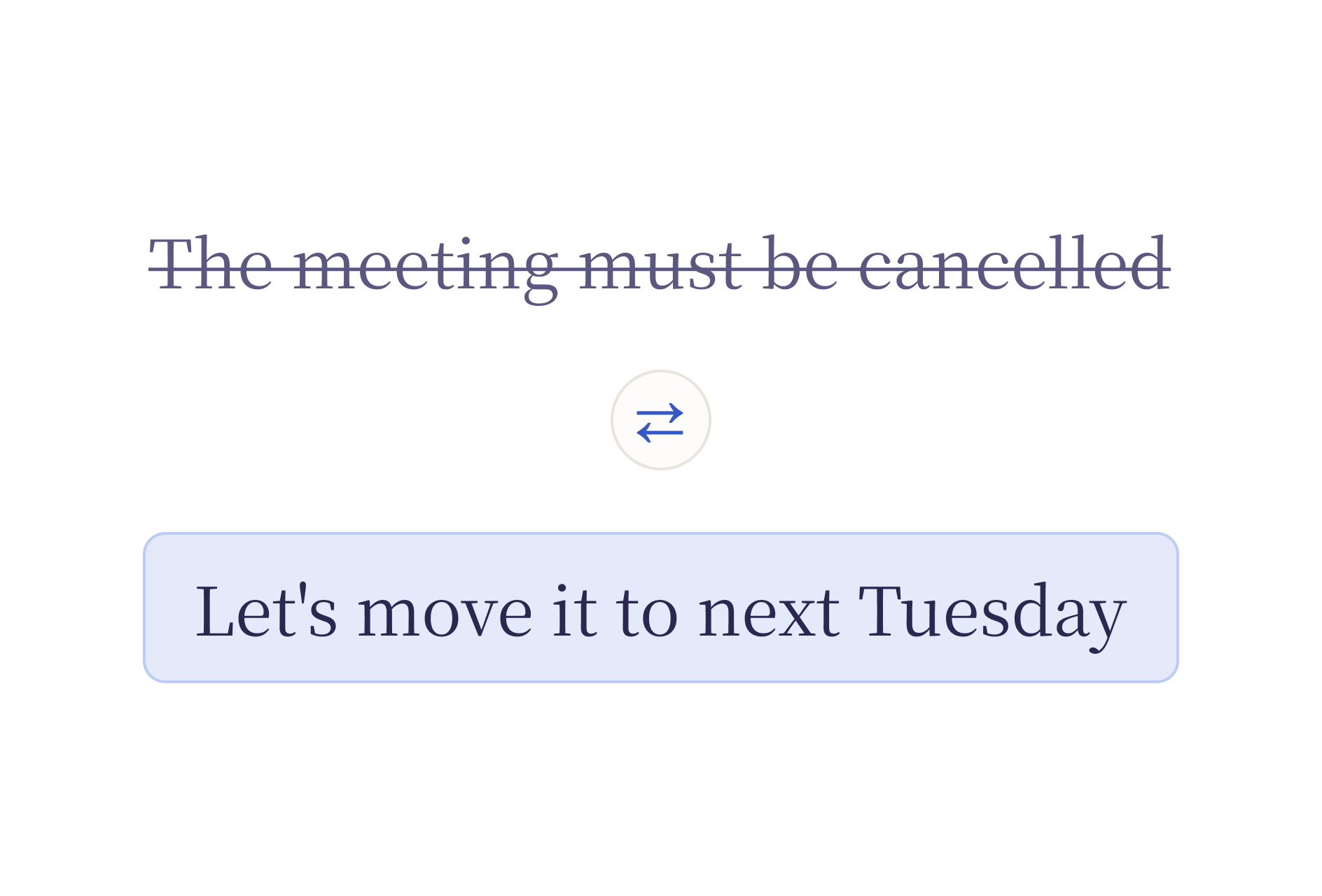
解決すること
文章を書く仕事の多くは、実は編集です。段落、返信、メモ、PRDの一節、サポート下書きはすでにあっても、長すぎる、粗い、堅すぎる、構成が足りない、ということがよくあります。
選択テキストの編集がないと、流れは次のようになりがちです。
- テキストをコピーする。
- 別のAIチャットに貼り付ける。
- どう変えてほしいかを説明する。
- 結果をコピーする。
- 元のアプリに戻る。
- 古い文章を置き換える。
Vioraは、編集の依頼を今のMac作業の中に保つことで、この往復を短くします。
使い方
- テキストを選択する。 任意のMacアプリで、段落、一文、またはセクション全体をハイライトします。
- ショートカットを押し続けて話す。 直したい内容を伝えます。「もっと短くして」「スペイン語に翻訳して」「箇条書きにして」などです。デフォルトのショートカットは
Fnで、変更できます。 - 離して確認する。 Vioraは、選択したテキストを編集後の文章で置き換えます。結果が合わなければ
Cmd+Zで取り消し、別の指示を試してください。
流れ全体が、今使っているアプリの中で完結します。コピー&ペーストも、ウィンドウの切り替えも不要です。
ショートカットが反応しない場合は、編集をやり直す前に、ショートカットとマイクのトラブルシューティング(英語)をご覧ください。

よく使う音声での編集依頼
| 目的 | 依頼の例 |
|---|---|
| 短くする | 「もっと短くして。」 |
| トーンを変える | 「もっと落ち着いて、直接的にして。」 |
| 分かりやすくする | 「もっと理解しやすくして。」 |
| 構成する | 「3つの箇条書きにして。」 |
| 意味を保つ | 「意味はそのままで、繰り返しを削って。」 |
| 返信を下書きする | 「短い顧客返信にして。」 |
| 翻訳する | 「これを日本語に翻訳して。」 |
これらはワークフローの例であり、すべてのアプリで同じ結果になることを保証するものではありません。アプリの権限、フォーカス中のテキスト領域、製品バージョンによって動きは変わることがあります。
使える場所
選択テキストの編集は、Vioraの音声入力と同じ入力欄で使えます。テキストを選択できる場所なら、声で編集できます。
- メール: Mail、ブラウザのGmail、Outlook、Superhuman
- チャット: Slack、Messages、Discord、Telegram
- ドキュメント: Notion、Google Docs、Obsidian、Bear、Apple Notes
- コード: Cursor、VS Code、Xcode(コードコメント、コミットメッセージ、docstring)
- ブラウザ: どのウェブサイトのテキストエリアでも
- フォーム: サポートチケット、CRM、社内ツール
音声入力との違い
| 観点 | 音声入力 | 選択テキストの編集 |
|---|---|---|
| 出発点 | カーソル、または空の入力欄 | すでに選択したテキスト |
| 主な役割 | 文章を作る | 文章を良くする |
| よくある出力 | 新しく挿入された言葉 | より短く、明確で、書き直され、再構成された文章 |
| 向いていること | メモ、メッセージ、最初の下書き | メール、引き継ぎ、PRD、サポート返信、コードレビューメモ |
音声入力と選択テキストの編集は、同じショートカットを共有します。テキストが選択されているかどうかで、Vioraがどちらのワークフローを使うかを判断します。
プライバシーと制約
Vioraはクラウド支援です。完全オフラインやローカルのみとは言えません。Vioraのプライバシー資料では、大規模モデルの処理が必要な場合、デスクトップのタスク内容がVioraのバックエンドシステムで処理されることがあると説明しています。
選択テキストの編集は、確認なしの自動化として使わないでください。送信や公開の前に、編集結果を確認してください。
FAQ
選択テキストの編集とは何ですか?
選択テキストの編集は、既存のテキストを選び、編集内容を話し、今のMac作業の中で書き直し結果を確認する、Vioraのワークフローです。
音声入力と何が違いますか?
音声入力は、発話から新しい文章を作ります。選択テキストの編集は、すでに存在する文章を変えます。
選択テキストの編集は完全オフラインですか?
いいえ。Vioraはクラウド支援であり、完全オフラインやローカルのみではありません。
元の文章は自動で上書きされますか?
Vioraは、選択したテキストを編集後の文章で置き換えます。結果が意図と違う場合は、多くのMacアプリで Cmd+Z により元に戻せます。
選択テキストの編集を試す
選択テキストの編集は、メール返信、メモ、PRDの一節、サポート回答、引き継ぎ文など、日常の下書きでいちばん試しやすい機能です。MacにVioraをインストールし、まず機密ではない文章で試し、日常の流れに加える前に現在のプランを確認してください。
関連記事
- Mac向け音声エージェント — 書く、編集する、尋ねる、実行するまでを含む、音声ワークフローの全体像
- macOS向け音声入力 — Vioraが発話を整った文章に変える仕組み
- Macの音声入力:完全ガイド — macOS標準の音声入力、サードパーティツール、Vioraの比較
- Vioraとは — 製品の平易な概要
- Vioraの活用例
Vioraの機能をさらに見る
各機能ページでは1つのワークフローを詳しく紹介します。文章作成、編集、質問、エージェント作業、記憶がどうつながるかをご覧ください。
次のステップを考える
活用例、プランの範囲、より広いリソース集を確認してからVioraの使い方を決めたいときにご覧ください。